
Seven Docker Tips Every Engineer Should Know (from Docker Captains)
Docker's official Twitter/X account shared a series of practical tips from Docker Captains. This post revisits those seven tips with more context and examples.
Between June and August 2025, Docker shared a short series of practical tips from Docker Captains on Twitter/X. The format was brief, but the advice is worth unpacking. This post is revisiting those seven tips with a little more context and newer examples.
Here are the seven tips, in the chronological order they were shared!
1. Start New Projects with Docker Init
Captain intro: Mohammad-Ali A'rabi is a Docker Captain from Freiburg, Germany, a backend software engineer, Docker community leader, and the author of Docker and Kubernetes Security. His work often sits at the intersection of practical engineering, education, community, and secure-by-default container workflows.
Need a clean Docker setup fast? Docker Captain @MohammadAliEN recommends: 'docker init' It auto-generates: 🔹 Dockerfile 🔹 .dockerignore 🔹 compose.yaml 🔹 README.Docker.md #Docker #DevTips #DockerCaptainInsights #Containers #CLI
— Docker (@Docker) June 16, 2025
The tweet points to docker init as the fastest way to get a clean Docker setup for a new project:
docker init
The command analyzes your project and generates a set of files that follow Docker's best practices:
Dockerfile.dockerignorecompose.yamlREADME.Docker.md
Read the following article for a detailed walkthrough of docker init with a Java project: Dockerize Java 26 with Docker Init.
2. Clean Up Docker Disk Usage Carefully
Captain intro: Rafael Pazini is a Docker Captain from Sao Paulo, Brazil, and a Senior Software Engineer at Pluto TV. He has more than 10 years of experience building scalable applications, with expertise in distributed systems, microservices, Docker, and Kubernetes.
Docker taking up space? 🧽 Captain @rflpazini says: docker system prune -a --volumes Cleared 8GB on his Mac today. ⚠️ Warning: This also wipes unused volumes. Use with care—but it works like a charm. #Docker #DevTips #DockerCaptainsights #Containers #CLI #MacDev
— Docker (@Docker) June 23, 2025
The command docker system prune is no stranger to Docker users:
docker system prune -a --volumes
The terminal will say:
WARNING! This will remove:
  - all stopped containers
  - all networks not used by at least one container
  - all dangling images
  - unused build cache

Are you sure you want to continue? [y/N]
BTW, did you know [y/N] means "default to No if the user just presses Enter"?
The -a flag adds removes all unused images, not just dangling ones. The --volumes flag adds unused volumes to the cleanup list. Check it out, and the warning verifies it:
WARNING! This will remove:
  - all stopped containers
  - all networks not used by at least one container
  - all anonymous volumes not used by at least one container
  - all images without at least one container associated to them
  - all build cache

Are you sure you want to continue? [y/N]
A few more handy commands:
docker rmi -f $(docker images -q)  # Force-remove all images
docker volume rm $(docker volume ls -q)  # Remove all volumes
Satisfaction!
3. Use Multi-Stage Builds
Captain intro: Karan Verma is a Docker Captain from Jalandhar, India. He is a software engineer and community leader who has been active in the Docker community in Jalandhar since 2017, with a focus that includes AI and MLOps.
Big AI image? Trim it down. Captain @karanvrm19 recommends multi-stage builds: 🗜️ Smaller containers 🚀 Faster deploys 🧼 Fewer deps Perfect for model iteration and clean shipping. #Docker #DevTips #DockerCaptainsights #Containers #AItools
— Docker (@Docker) June 30, 2025
It's not only AI images that can get big. It's better to trim images down, AI or not. It's cost-effective, faster to deploy, and more secure by reducing the attack surface. Multi-stage builds are the way to go for that.
To add to that, docker init already generates a multi-stage Dockerfile for you.
Also, make sure the final stage is hardened with a non-root user and limited privileges. For example, use a base image with no package manager, no shell, and no extra tools.
Another important tip is to generate SBOM attestations during the build:
docker build --sbom=true -t my-image:latest .
This command doesn't automatically include all stages in the SBOM, so you need to add the following line to each stage in your Dockerfile to ensure they are included:
ARG BUILDKIT_SBOM_SCAN_CONTEXT=true
FROM <image> AS stage
4. Choose Lightweight, Version-Pinned Base Images
Captain intro: Sergio Lopes is a Docker Captain from Sao Paulo, Brazil, and a Principal Backend Engineer at Banco Itau Unibanco S.A. Docker highlights his long backend engineering background and expertise in developer productivity, Kubernetes, modern application development, and observability.
Captain @sergiolopessp keeps it lean: 🪶 Lightweight base images = ⚡ Faster builds 🔒 Smaller attack surface 💾 Optimized storage Pro tip: Use official, version-pinned, slim images. Every MB counts. #Docker #DevTips #DockerCaptainsights #Containers #Security
— Docker (@Docker) July 14, 2025
This tweet is from July 2025, but the advice is evergreen. Use Docker Hardened Images (DHI) for base images, and pin to a specific version. The DHI are:
- Lightweight
- Open-source
- Secure-by-default
Check the catalog at dhi.io and pick the right image for your language and use case. Search for "node", get into the Node.js image catalog:
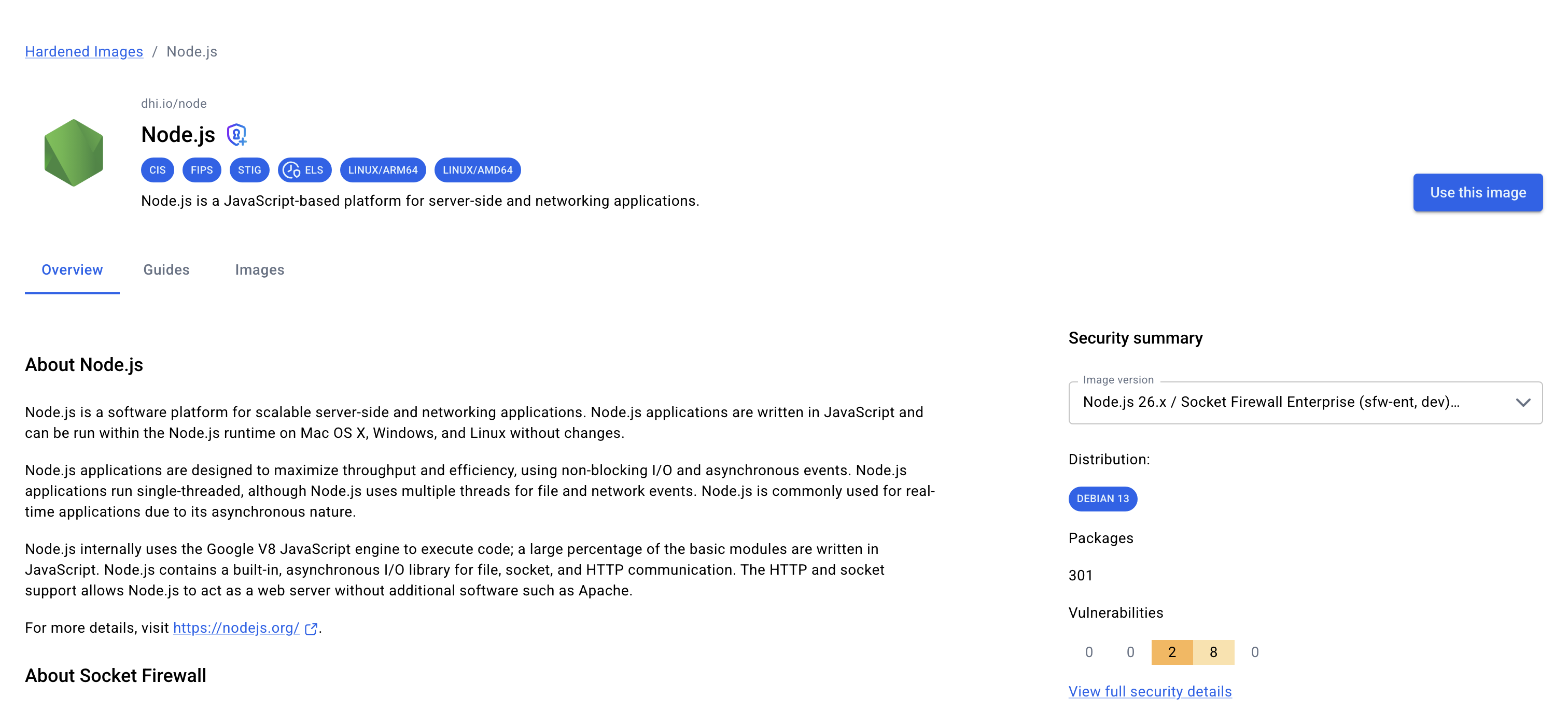
Then go to the "Images" tab to see the full list:
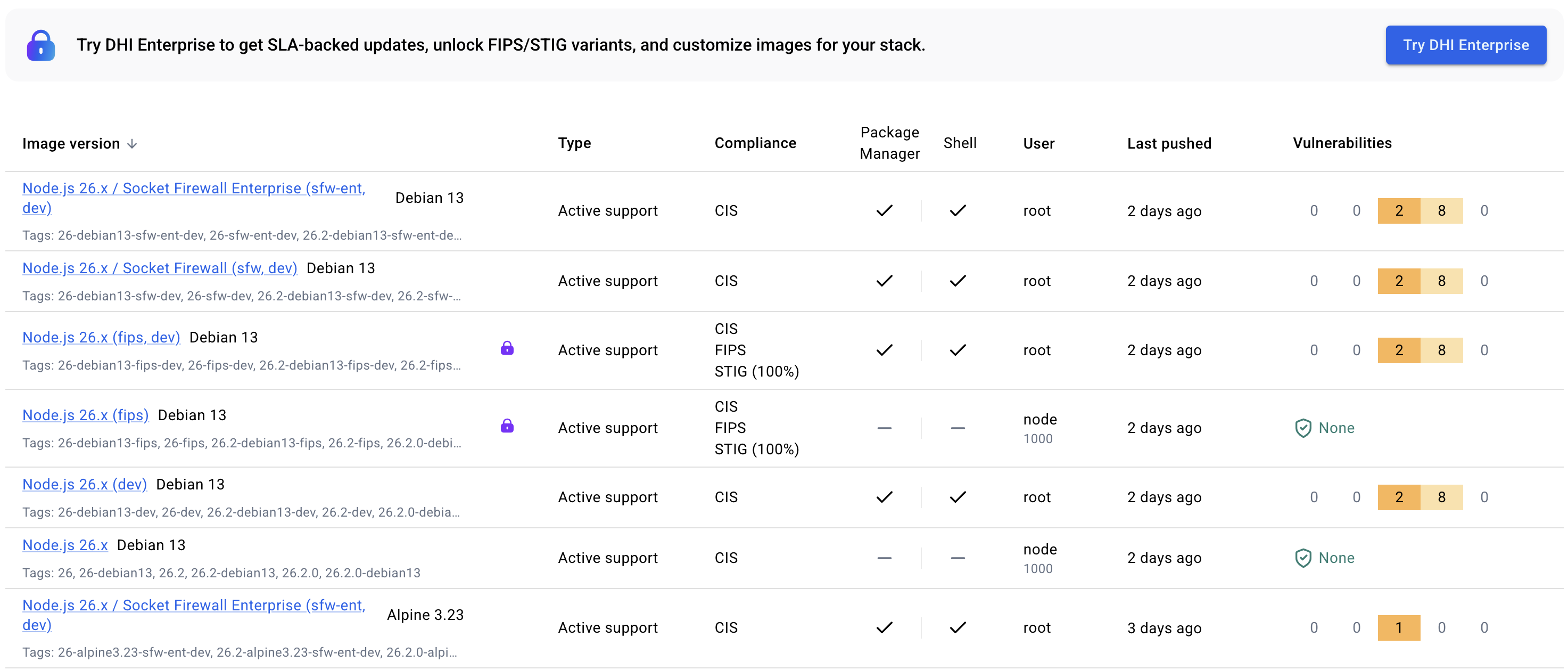
In the list of images:
- If there is a lock, it's not free to use. Just skip it.
- There are Debian and Alpine variants.
- There are "dev" variants with build tools and "prod" variants without them.
Find a version, and your Dockerfile should start like this:
# The build stage
FROM dhi.io/node:26.2.0-debian13-dev AS build

# The production stage
FROM dhi.io/node:26.2.0-debian13
The dev image has 10 CVEs and the prod image has 0.
5. Use Docker Scout Quickview
Captain intro: Khushboo Verma is a Docker Captain and Platform Engineer at Appwrite in Bengaluru, India. She is also a community builder and speaker, with Docker listing her expertise in developer productivity, modern application development, and observability.
Captain @khushbooverma suggests: ➡️ docker scout quickview 🔍 Analyzes your image 🛡 Flags CVEs 📦 Lists deps & base image metadata Run before pushing-especially in CI: ➡️ docker scout quickview my-image:latest Stay ahead of vulnerabilities. #Docker #DockerCaptainsights
— Docker (@Docker) July 21, 2025
The docker scout quickview command is a fast way to get a snapshot of your image's security posture. It checks for known CVEs, lists dependencies, and provides metadata about the base image. This is especially useful in CI pipelines to catch vulnerabilities before pushing images to a registry.
Let's do it on the DHI Node.js image:
docker scout quickview dhi.io/node:26.2.0-debian13
The output says:
    i New version 1.21.0 available (installed version is 1.20.3) at https://github.com/docker/scout-cli
    ✓ SBOM obtained from attestation, 20 packages found
    ✓ Provenance obtained from attestation
    ✓ VEX statements obtained from attestation

    i Base image was auto-detected. To get more accurate results, build images with max-mode provenance attestations.
      Review docs.docker.com ↗ for more information.

 Target   │  dhi.io/node:26.2.0-debian13  │    0C     0H     0M     0L
   digest │  f3fb2a06abd6                 │
So, there are no CVEs, and the image has:
- SBOM attestation with 20 packages
- Provenance attestation
- VEX statements attestation
If you want to learn more about these concepts, check out the Docker Commandos workshop on Docker Labspaces: Docker Commandos.
6. Use .dockerignore
Captain intro: Anjan Kumar Reddy Ayyadapu is a Docker Captain and Senior Architect Solution Leader at Cloudera Inc. Docker lists his expertise across AI/ML, CI/CD, Kubernetes, observability, developer productivity, and software secure supply chain work.
🐳 Docker Tip from Captain Anjan: Use a .dockerignore file — just like .gitignore — to exclude unnecessary files like npm-debug.log, .git/, node_modules/, and tests/. ✅ Smaller images ⚡ Faster builds 🧼 Cleaner containers #Docker #CaptainInsights #DevTips
— Docker (@Docker) July 29, 2025
The tweet compares .dockerignore to .gitignore, which is exactly the right mental model. .gitignore decides what should not enter version control; .dockerignore decides what should not enter the Docker build context.
Two points on that!
When doing a docker build command, it usually looks like this:
docker build -t my-image:latest .
The . at the end is not the Dockerfile path; it's the build context path. It means, "send the current directory and all its contents to the Docker daemon for the build".
Anjan says blacklist some files with .dockerignore, I would say whitelist some files with .dockerignore. Start with a clean slate, and add only what you need. For example:
# .dockerignore
*

!src/
!package.json
!package-lock.json
7. Limit Container Privileges
Captain intro: Mohammad-Ali A'rabi appears again in Docker's series, this time with a security tip. It's not me promoting myself, it's Docker!
🔐 Since we're talking security this week, here's a quick tip from Docker Captain Mohammad-Ali A'RÂBI: Limit container privileges with --cap-drop and --cap-add. Drop everything. Add only what you need. 🛡️ Simple. Effective. Secure.
— Docker (@Docker) August 7, 2025
Just for context: Linux capabilities are granular permissions that can be independently enabled or disabled for processes. Similar to the whitelisting approach of .dockerignore, you can start with a clean slate by dropping all capabilities and then adding only the ones your application needs. For example:
docker run --cap-drop=ALL --cap-add=NET_ADMIN my-image:latest
It's similar in a Kubernetes pod spec:
apiVersion: v1
kind: Pod
metadata:
  name: my-pod
spec:
  containers:
  - name: my-container
    image: my-image:latest
    securityContext:
      capabilities:
        drop: ["ALL"]
        add: ["NET_ADMIN"]
To learn more about Linux capabilities and how to use them in Docker and Kubernetes, check out the book Docker and Kubernetes Security.
Conclusion
I wish Docker starts sharing more tips from Docker Captains, and I hope this post helps expand on the original tweets with more context and examples. If you have any questions or want to share your own Docker tips, feel free to reach out on LinkedIn or Twitter/X.
Happy Dockerizing!